
What is My Refresh Rate? How to Check Your Monitor's Hz
FrameRateTest.org ·
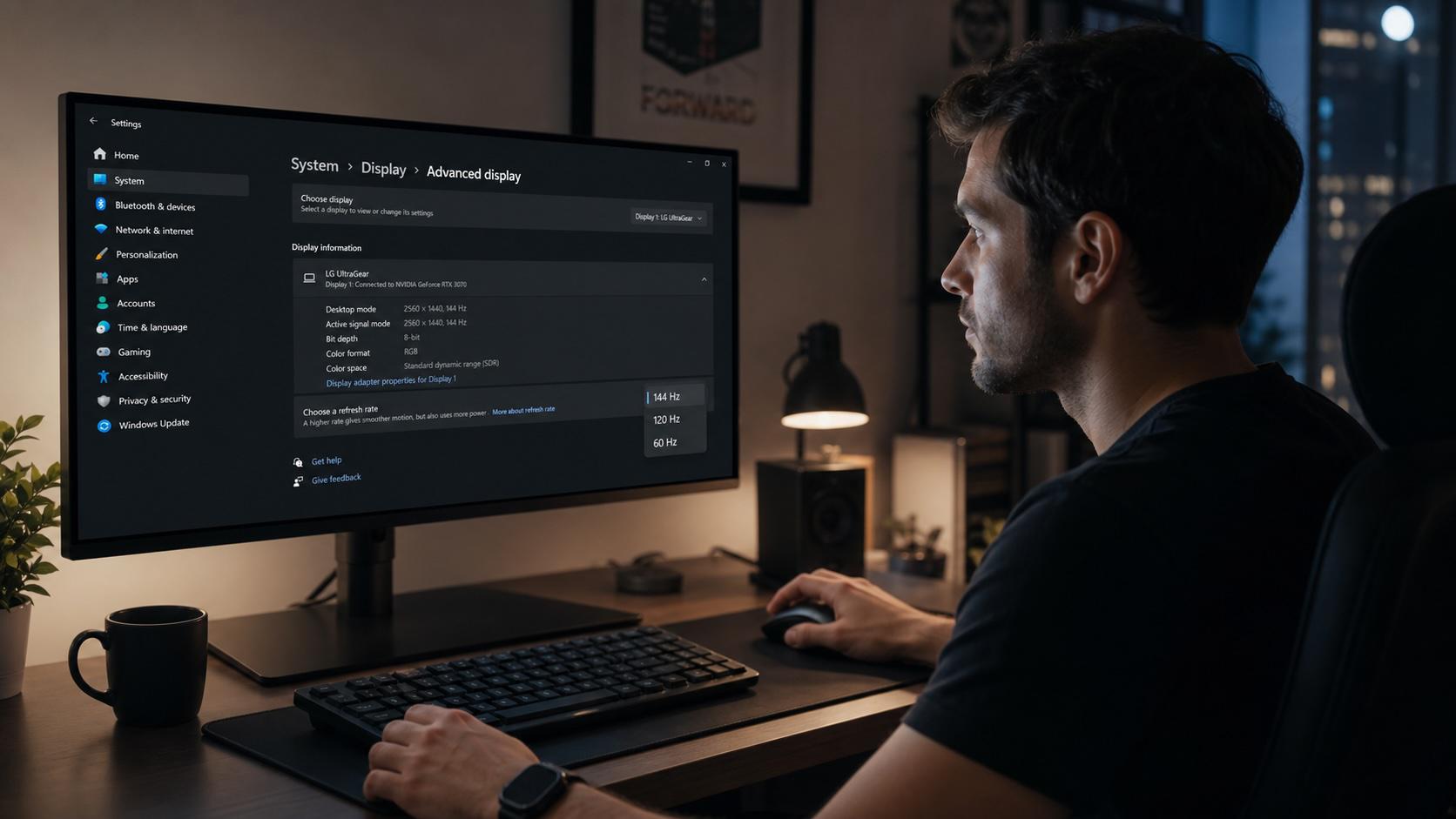
Your refresh rate is how many times per second your display redraws the image on screen, measured in hertz (Hz). A 60 Hz monitor repaints 60 times a second; a 144 Hz monitor repaints 144 times. A higher number means smoother motion, less blur, and a more responsive feel when you scroll, aim, or move the cursor. This guide explains exactly what refresh rate is, how it differs from frame rate, how to find and change it on every major device, and why so many people run an expensive panel at 60 Hz without noticing. You can measure the result at any time with our frame rate test.
What Refresh Rate (Hz) Actually Measures
Refresh rate is a fixed capability of the panel and its current display mode. It counts full redraws of the screen per second. One hertz equals one refresh, so 120 Hz means the image is rebuilt 120 times every second. Each refresh has a fixed budget of time called the frame time. You calculate it by dividing 1000 by the refresh rate. A 60 Hz screen holds each image for about 16.7 ms, while a 240 Hz screen swaps images every 4.2 ms. Shorter frame times put newer information in front of your eyes sooner, which is why fast panels feel more immediate even on the desktop.
The refresh rate sets an upper ceiling on smoothness. No matter how powerful your computer is, the monitor can never show more distinct images per second than its refresh rate allows. This is a hardware trait of the display, separate from the software and graphics card that feed it. It also depends on the active resolution: a panel may reach 144 Hz at 1080p but drop to a lower ceiling at 4K because higher resolutions demand more bandwidth. Understanding this ceiling is the first step to diagnosing why motion looks smooth on one setup and choppy on another.
Refresh Rate vs. Frame Rate (FPS)
Refresh rate and frame rate are related but describe different things, and confusing them causes most misunderstandings. Refresh rate (Hz) belongs to the monitor: it is how often the display can redraw. Frame rate (FPS) belongs to the source: it is how many finished images your graphics card produces each second. One is the screen's supply of refreshes; the other is the computer's supply of frames.
What you actually see is limited by whichever number is lower. A 144 Hz monitor cannot display more than 144 unique images per second even if the GPU renders 300. A GPU stuck at 40 FPS will still look choppy on that 144 Hz panel, because the screen has spare refreshes with no new frame to fill them. The ideal pairing is a frame rate that comfortably meets or exceeds the refresh rate. If you want a deeper explanation of frames and how they are counted, our overview of frames per second and its role in gaming performance covers the topic in full.
How to Find Your Current Refresh Rate
The fastest way to answer "what is my refresh rate" is to open your device's display settings. The exact path differs by platform, but every modern system reports the active Hz value in a few clicks.
Windows 11 and Windows 10
Right-click the desktop and choose Display settings. On Windows 11, open Advanced display and read the value beside Refresh rate. On Windows 10, open Advanced display settings, then Display adapter properties, and check the Monitor tab under Screen refresh rate. If you run multiple monitors, select the correct one from the dropdown first, because each display carries its own setting.
macOS
Open the Apple menu, choose System Settings, then Displays. The active refresh rate appears next to the Refresh rate field. On some Macs you must hold the Option key while clicking Scaled to expose the full list of supported rates, including any high-refresh modes ProMotion panels support.
Phones and Tablets
On an iPhone with ProMotion, the display runs up to 120 Hz unless you enable Settings → Accessibility → Motion → Limit Frame Rate, which caps it at 60 Hz. On Android, open Settings → Display → Refresh rate (Samsung labels it Motion smoothness) and pick a mode such as 60 Hz, 90 Hz, or 120 Hz. Many phones drop to a lower rate automatically to save battery, so the number you see may change with the content on screen.
How to Change Your Refresh Rate
Once you know the current value, raising it is usually a one-step change. On Windows 11, open Display settings → Advanced display and pick the highest option in the Refresh rate dropdown. On Windows 10, the same choice lives under Display adapter properties → Monitor. On macOS, select a higher value in System Settings → Displays. If your target rate is missing from the list, the limitation is almost always your cable, port, resolution, or driver rather than the monitor itself.
Why Your Screen Might Be Stuck at 60 Hz
Buying a 144 Hz or 240 Hz monitor does not guarantee you are using it. Many systems default to 60 Hz and never switch automatically. Work through these causes in order:
- Operating system default: Windows and macOS often select 60 Hz on first setup. Changing it manually, as described above, is frequently the entire fix.
- Cable bandwidth: an old HDMI cable or an under-spec DisplayPort cable may not carry enough data for high Hz at your resolution. Use a cable rated for the standard your ports support.
- Wrong port: some HDMI ports on monitors and graphics cards are limited to older standards. DisplayPort is generally the safest choice for high-refresh PC gaming.
- Outdated GPU drivers: stale drivers can hide the maximum refresh rate entirely. Update them, then recheck the dropdown.
- Resolution and bandwidth limits: at 4K or 5K, the same cable that hits 144 Hz in 1080p may only manage 60 Hz, because higher resolutions consume the available bandwidth.
Bandwidth is the thread linking most of these problems. HDMI and DisplayPort each carry a fixed data rate, and resolution multiplied by refresh rate must fit inside it. The table below shows realistic ceilings for common connections. Values assume standard uncompressed signals; Display Stream Compression (DSC) can push some of these higher.
| Connection | Approx. bandwidth | 1080p max | 1440p max | 4K max |
|---|---|---|---|---|
| HDMI 1.4 | 10.2 Gbps | 120 Hz | 60 Hz | 30 Hz |
| HDMI 2.0 | 18 Gbps | 240 Hz | 144 Hz | 60 Hz |
| HDMI 2.1 | 48 Gbps | 240 Hz+ | 240 Hz | 120 Hz |
| DisplayPort 1.2 | 21.6 Gbps | 240 Hz | 165 Hz | 60 Hz |
| DisplayPort 1.4 | 32.4 Gbps | 360 Hz+ | 240 Hz | 120 Hz |
| DisplayPort 2.1 | up to 80 Gbps | 500 Hz+ | 360 Hz+ | 240 Hz |
How to Verify the Refresh Rate You Actually Get
The number in your settings is what the system requests, not always what the panel delivers. To confirm the real result, measure it. Our frame rate test reports the frames per second your browser renders, and on a correctly configured system that figure should sit right at your monitor's Hz. If the measured value stays well below the advertised rate, a cap somewhere in the browser, GPU, or OS is holding you back.
Verification matters because a panel can accept a high refresh signal yet fail to paint every frame cleanly. Displays sometimes skip frames, repeating an old image instead of drawing the new one, which erases the benefit of the extra Hz. Our frame skipping test exposes this by making dropped frames visible. Pair it with the motion blur test to judge pixel response and the stutter test to catch uneven pacing. If moving objects tear across the screen, the screen tearing test shows whether your frame delivery and refresh cycle are out of sync.
Common Refresh Rates and What They Suit
Displays ship at a handful of standard rates, and each maps to a use case. The table pairs each rate with its frame time and typical audience so you can judge what fits your needs.
| Refresh rate | Frame time | Best suited for |
|---|---|---|
| 24 Hz | 41.7 ms | Cinematic film playback |
| 60 Hz | 16.7 ms | Office work, browsing, video |
| 75 Hz | 13.3 ms | Budget productivity and light gaming |
| 120 Hz | 8.3 ms | Smooth gaming, high-end phones |
| 144 Hz | 6.9 ms | Mainstream PC gaming sweet spot |
| 240 Hz | 4.2 ms | Competitive and esports play |
| 360 Hz+ | 2.8 ms or less | Professional-grade competition |
For most people, 144 Hz offers the best balance of price and benefit. The jump from 60 Hz to 144 Hz is dramatic and obvious; the gains above 240 Hz shrink quickly and demand a graphics card able to feed them.
Variable Refresh Rate: G-Sync and FreeSync
A fixed refresh rate assumes a steady frame supply, but games rarely deliver one. When frame rate and refresh rate drift out of step, you get tearing or stutter. Variable refresh rate (VRR) solves this by letting the monitor adjust its refresh timing on the fly to match the GPU's output, frame by frame. NVIDIA markets its version as G-Sync and AMD calls its open standard FreeSync, both built on the same idea.
Within a supported range, often around 48 Hz up to the panel's maximum, the display waits for each finished frame and shows it immediately. The result is tear-free, smoother motion even when frame rate fluctuates. VRR does not raise your peak refresh rate; a 144 Hz FreeSync panel still tops out at 144 Hz. It simply removes the artifacts that appear when supply and demand fall out of sync. Enable it in your GPU control panel and the monitor's on-screen menu, then confirm the smoother behaviour with the tearing and stutter tests above.
Frequently Asked Questions
What is my refresh rate?
It is how many times per second your monitor redraws its image, measured in hertz. Check it in your display settings or confirm the real figure with our online frame rate test.
Why is my refresh rate stuck at 60 Hz?
Usually the operating system never switched to the maximum, or a low-bandwidth cable, a limited HDMI port, an unsupported resolution, or outdated GPU drivers is capping it. Check each before assuming a hardware fault.
Is a higher refresh rate always better?
Up to a point. Moving from 60 Hz to 144 Hz is a clear upgrade. Beyond 240 Hz the gains are subtle, and your graphics card must produce enough frames to use the extra Hz.
Does refresh rate matter for watching movies?
Not much. Most films are mastered at 24 FPS, so 60 Hz is ample. Some players offer a 24 Hz mode to avoid the judder of showing 24 FPS content on a 60 Hz screen.
Related Tests and Guides
- Frame rate test — measure the FPS your display is actually rendering.
- Frame skipping test — check whether your panel drops frames.
- Screen tearing test — see if frame delivery and refresh are in sync.
- Motion blur test — judge pixel response and clarity in motion.
- Stutter test — reveal uneven frame pacing.
- What is frame rate? — how FPS differs from refresh rate.
- FPS: frames per second — the fundamentals of frame counting.
- Frames per second in gaming — why FPS shapes the play experience.